
Zapier vs Make: Which Automation Tool Is Best in 2026?

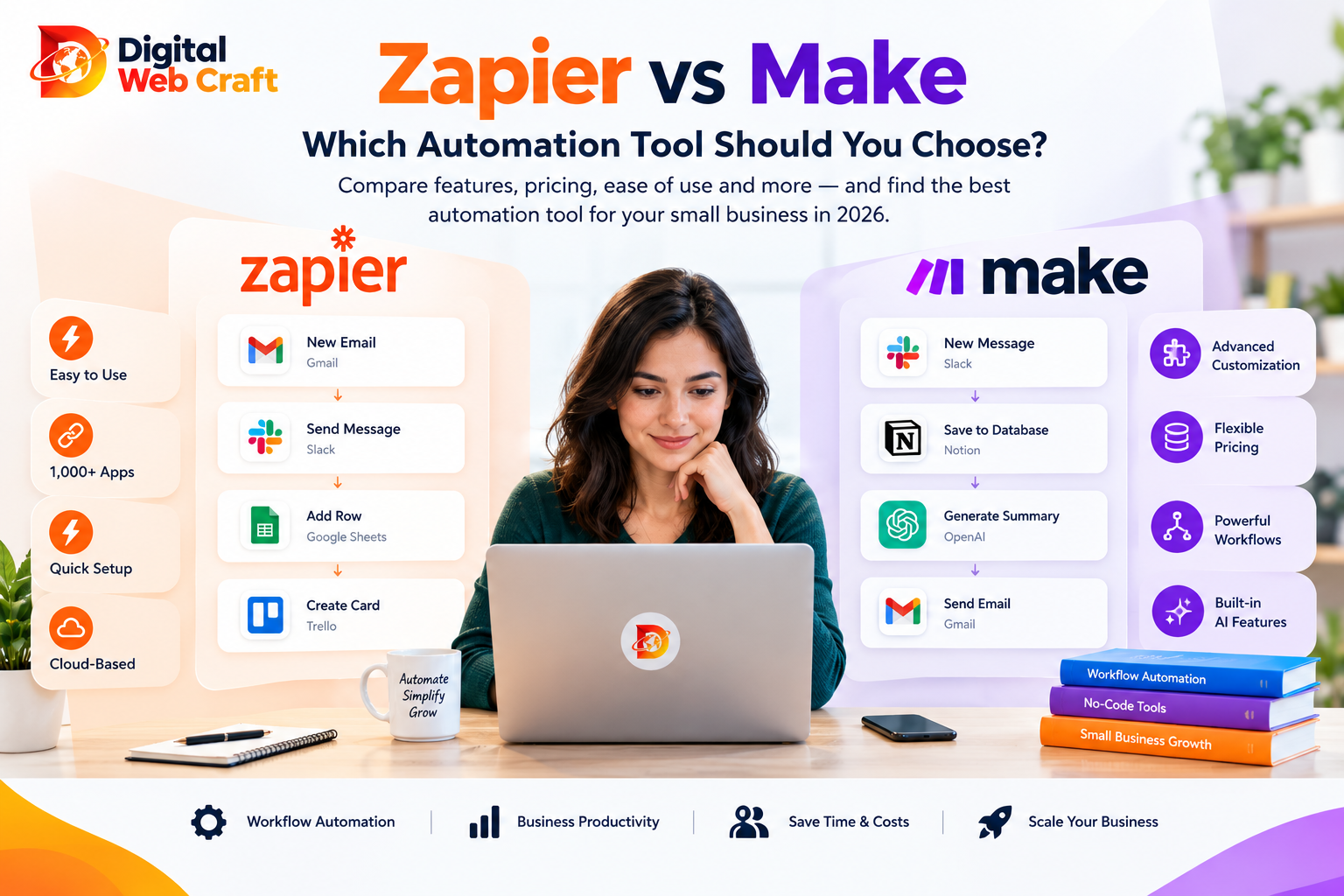
Every growing business hits the same wall. Leads arrive from your website, orders come in from your store, invoices are created in one tool, customers are tracked in another, and somebody on your team spends hours every week copying information from one screen to the next. It is slow, it is boring and it is where mistakes creep in.
Automation platforms exist to fix exactly that. Two names dominate the conversation: Zapier and Make. Both connect thousands of apps, both let you build workflows without writing code, and both have added AI features in recent years. Yet they feel quite different to use, they charge in different ways, and the “right” one depends heavily on what you are building and who will be maintaining it.
This guide compares Zapier and Make honestly, from the point of view of a small business that wants results rather than technical bragging rights. You will see where each tool shines, where each one frustrates, how pricing models differ (without outdated numbers), and a simple framework for choosing.
If you are still deciding what to automate, start with our guide, 10 Practical Ways to Automate Your Business with AI, then come back here to pick the tool.
Key Takeaways
- Zapier is built for simplicity and speed, while Make is built for control and complex workflows.
- Beginners and non-technical teams usually reach a first working automation faster with Zapier.
- Workflows with branches, loops, lists and data transformation are usually easier to build and read in Make.
- Zapier counts usage in tasks and Make counts usage in credits, so your real cost depends on how many steps run and how often.
- Estimating monthly usage from your own workflows is more reliable than comparing plan prices alone.
- Check that the exact triggers and actions you need exist for your apps before choosing either tool.
- Error alerts, tested workflows and shared service accounts keep automations from failing silently.
- AI steps can classify, summarise and draft inside workflows, but should be tested and kept behind human approval for risky actions.
- Using both tools is reasonable when simple quick wins and heavy data workflows have different needs.
- Custom development makes more sense than a no-code platform when a process is core to the business or needs very high reliability.
The Short Answer
Here is the practical summary before we go deep:
- Choose Zapier if you want the fastest path from idea to working automation, you are not technical, your workflows are mostly simple “when this happens, do that” chains, and you value having the widest app coverage and the gentlest learning curve.
- Choose Make if you want more control, you are comfortable with a visual canvas, your workflows involve branching, loops, data transformation or many steps, and you want to keep costs down as volume grows.
- Use both if different people or departments have different needs. Many businesses run quick, simple automations in Zapier and heavier data workflows in Make.
If you only remember one thing: Zapier optimises for simplicity, Make optimises for control. Neither is “better” in general. The better tool is the one that matches your workflows and your team.
What Zapier and Make Actually Do
Both platforms sit between your apps and move information automatically. Think of them as a very patient assistant who watches one app for an event and then performs a set of tasks in other apps.
Typical examples include:
- A new form submission on your website creates a contact in your CRM and sends a welcome email.
- A paid order in your online store creates an invoice in your accounting software and a task in your project tool.
- A new row in a spreadsheet triggers a message to your team chat.
- A support email is read by AI, categorised and added to a helpdesk with the right priority.
Without automation, a person does each of those steps by hand. With automation, the steps happen in seconds, in the background, every time.
How Automation Platforms Work
Understanding a few basic ideas makes the comparison much easier.
Trigger: the event that starts a workflow, such as “new lead in the form” or “invoice paid.”
Action: something the platform does in response, such as “create a contact” or “send an email.”
Data mapping: moving information from one step into the next, for example taking the customer’s name from the form and inserting it into the email.
Filters and conditions: rules that decide whether the workflow continues, for example “only if the budget is above a certain amount.”
Branches (routes): different paths for different cases, such as one path for sales enquiries and another for support requests.
Iterators and aggregators: tools for handling lists, such as processing every line item in an order or combining many records into one summary.
Webhooks and APIs: ways to connect apps that have no ready-made integration, or to receive data instantly from your own website or software.
Both Zapier and Make cover all of these ideas. The difference lies in how they present them and how easily you can reach the advanced ones.
Zapier at a Glance
Zapier is the better-known name and is often the first automation tool people try. Its workflows are called Zaps, and the builder presents them as a simple vertical list of steps: one trigger followed by actions.
What people like:
- A very friendly, guided editor that feels close to filling in a form.
- A huge directory of supported apps, including many niche business tools.
- Strong templates for common tasks, so you often start from a working example.
- A quick path to a first working automation, often within minutes.
- Built-in helpers for formatting text, dates and numbers.
- AI-assisted building, where you describe what you want and the platform suggests a workflow.
What people dislike:
- Costs can climb as the number of automated tasks grows, especially for multi-step workflows.
- Complex logic, such as nested branches and loops, can feel awkward or require extra steps.
- The linear layout makes very large workflows harder to see at a glance.
Make at a Glance
Make (formerly known as Integromat) uses a visual canvas. Workflows are called scenarios, and you build them by placing circular modules on a board and drawing connections between them. You can see the entire flow at once, including branches that split and rejoin.
What people like:
- The visual layout makes complex workflows easier to understand.
- Powerful built-in tools for routing, filtering, looping, aggregating and transforming data.
- Detailed control over every step, including how data is mapped and handled.
- Typically better value for high-volume or many-step workflows.
- The ability to run a scenario step by step and inspect the data at each module.
What people dislike:
- A steeper learning curve, particularly for non-technical beginners.
- Some concepts, such as iterators, aggregators and data structures, take time to grasp.
- Its app library, although large, may not include every niche tool Zapier supports (you may need an HTTP or API module instead).
- The interface can feel busy until you are used to it.
Ease of Use and Learning Curve
For most beginners, this is the deciding factor.
Zapier is designed so that a non-technical person can build something useful on day one. You pick a trigger app, pick an action app, connect your accounts and test. The editor explains each field in plain language. If your workflow is a straight line, you will rarely feel lost.
Make asks a little more of you. The canvas is flexible, but it expects you to think in terms of data flowing between modules. Your first scenario may take longer, and you will probably watch a few tutorials. The reward is that once you are comfortable, you can build things that would be clumsy in Zapier.
A fair rule of thumb:
- Time to first working automation: Zapier is usually faster.
- Time to build a complex, many-branch workflow: Make is often faster and tidier.
If the person maintaining automations is the owner, an office manager or a marketer who does not enjoy technical tools, Zapier tends to be less stressful. If the person is an operations lead, analyst or developer who likes to see how things connect, Make will likely feel more natural.
Workflow Power and Flexibility
This is where Make usually pulls ahead.
Branching and routing. In Make, a router module can send data down several paths at once, each with its own filters. In Zapier, similar logic is available through paths and filters, but it can feel more constrained and may use more steps (and therefore more usage) to achieve the same result.
Loops and lists. Suppose an order contains five products and you want to create a line item for each in your accounting system. Make handles this naturally with iterators and aggregators. Zapier can do it too, but the setup is often less intuitive.
Data transformation. Make offers a rich set of functions for manipulating text, numbers, dates, arrays and JSON directly inside the mapping fields. Zapier has formatter tools and code steps, which are useful but separate from the field mapping.
Custom code. Both platforms let you add small code snippets for special cases, and both can call any API with HTTP requests.
Long, complex scenarios. A workflow with twenty or thirty steps, several branches and some error handling is generally easier to understand on Make’s canvas than in a long vertical list.
Simple workflows. For “new lead, add to CRM, send email,” both tools are equally capable, and Zapier’s version will probably take you less time to build.
App Integrations and Connectors
Both platforms support thousands of apps. Zapier has historically had the larger directory, including many small or specialised tools, while Make covers the major platforms very well and offers deep, detailed modules for many of them.
What matters for you is not the total number but whether the specific apps you use are supported, and how deeply.
Before choosing, list the tools in your business, for example:
- Website and forms (WordPress, Shopify, Webflow, Typeform)
- CRM (HubSpot, Zoho, Pipedrive, Salesforce)
- Email and marketing (Mailchimp, Brevo, Klaviyo)
- Accounting (QuickBooks, Xero)
- Communication (Slack, Gmail, WhatsApp via providers)
- Spreadsheets and databases (Google Sheets, Airtable, Notion)
- Calendars and scheduling (Google Calendar, Calendly)
Then search for each app on both platforms. Check not only whether the app exists, but whether the specific trigger or action you need is available. A connector that only offers a few actions may not do what you want.
If an app is missing from either platform, you can usually connect through webhooks or an API call. That is easier in Make for technical users, and possible in Zapier as well.
Pricing Models Explained
Exact prices change frequently, so check each company’s pricing page before you decide. What is more useful, and changes less often, is understanding how each platform counts usage, because that determines your real cost.
Zapier’s model. Zapier charges based on tasks. Broadly, a task is counted when an action step in a Zap runs successfully. The trigger step is generally not counted, but each action step is. So a Zap with one trigger and four actions uses roughly four tasks every time it runs. Plans are tiered by monthly task allowance, and higher tiers unlock features such as multi-step Zaps, paths and team features.
Make’s model. Make charges based on credits (previously called operations). Broadly, each module that runs in a scenario consumes usage, and plans are tiered by monthly allowance. Make’s pricing is generally regarded as more economical per unit of work, which is one reason high-volume users choose it. Because the way usage is counted can change, always read the current explanation on Make’s site.
What this means in practice:
- Low volume, simple workflows: Both can be very affordable, and both typically offer a free tier to start. Choose on ease of use.
- Medium volume, multi-step workflows: Costs can diverge. Count the steps in your workflow and multiply by expected runs per month to estimate usage on each platform.
- High volume or data-heavy workflows: Make is frequently the more economical option, but only if you have the skills to build efficiently.
- Polling and frequent schedules: Some automations check for new data every few minutes. Check how that affects usage on each platform.
A simple way to estimate cost:
- List your three most important workflows.
- For each, count the steps that perform actions.
- Estimate how many times each will run per month.
- Multiply to get monthly usage, then compare with plan limits.
- Add a margin of 20 to 30 percent for growth and testing.
Hidden costs to remember:
- Your own time to build and maintain workflows.
- Subscriptions to the apps you connect, which may need higher tiers to allow API access.
- Premium AI model usage, if any step calls an AI service.
- The cost of mistakes, such as a workflow that runs in a loop and burns through your allowance.
If you are also budgeting for a new website to feed these automations, our small business website cost guide can help you plan.
AI Features in 2026
Both platforms have embraced AI, and this is an area that moves quickly, so treat this section as a map of what to look for rather than a feature checklist.
Building with AI. Both tools let you describe a workflow in plain language and have AI suggest a draft. This is handy for beginners, but always review the result, because AI-generated drafts may choose the wrong fields or skip error handling.
AI steps inside workflows. You can add steps that use AI to summarise a document, classify an email, extract details from text, draft a reply or translate content. For example, an incoming enquiry can be read by AI, tagged as “web design” or “SEO,” and routed to the right team member.
AI agents. Both ecosystems now offer ways to build agent-like workflows, where an AI model decides which tools to use and in what order. These are powerful but need careful limits. Keep a human approval step for anything involving money, deletion or customer-facing promises. Our upcoming article on AI agents will cover this in more depth.
Bring your own AI. Both platforms let you connect AI providers using your own accounts and keys. That gives you control over which model you use and what it costs.
How to choose on AI features:
- If you want quick, guided AI helpers inside simple workflows, Zapier is comfortable and fast.
- If you want to combine AI with complex routing, structured data and multi-step logic, Make’s canvas gives you finer control.
- In both cases, test with realistic data. AI steps can be wrong, so add checks and fallback paths.
For businesses that want a conversational layer on top of automation, see our comparison of AI chatbots and live chat, since chatbots often feed leads directly into the workflows you build here.
Error Handling, Reliability and Debugging
Automations fail sometimes. An app goes down, a field is empty, a password expires or a record already exists. How the platform helps you recover matters a lot.
Zapier. Failed runs appear in a history with error messages, and you can often replay them after fixing the problem. Notifications can tell you when a Zap has errors. For simple workflows, this is usually enough.
Make. Offers more granular error handling. You can attach error-handler routes to individual modules, telling the scenario what to do if that step fails: ignore it, retry, roll back, send an alert or follow an alternative path. You can also inspect data at each module and re-run from a given point. This level of control is valuable for important workflows such as order processing or invoicing.
Practical advice for either platform:
- Always add a notification (email or chat message) for failures on important workflows.
- Test with messy data: empty fields, long text, special characters, duplicate records.
- Avoid building loops that can trigger themselves, such as a workflow that updates a record which in turn triggers the same workflow.
- Keep a simple document listing each automation, what it does, who owns it and which accounts it uses.
- Review run history weekly at first, then monthly.
Speed, Scheduling and Real-Time Triggers
Some workflows must run instantly, such as sending a confirmation when a customer pays. Others can wait, such as a nightly report.
Both platforms support instant triggers (usually via webhooks or app notifications) and scheduled or polling triggers (checking at intervals). The speed of polling depends on your plan and the connector. If real-time response is essential, choose an instant trigger and test the delay yourself.
Scheduling. Make has flexible scheduling options built into the scenario, including specific times and intervals. Zapier supports schedules through its own scheduling tools and triggers.
Webhooks. Both can receive data from your website or custom software. This is especially useful if you have a custom-built site or app and want it to send data directly to your automations. If you use WordPress or Shopify, ready-made connectors often make this unnecessary.
Team Collaboration, Security and Compliance
If more than one person will manage automations, look at how each platform handles teams.
Things to check:
- Can several people edit and view the same workflows?
- Is there role-based access, so a junior team member cannot delete important automations?
- How are connected account credentials stored and shared?
- Is there an audit trail showing who changed what?
- Does the platform offer single sign-on or other security features on the plan you need?
- Where is your data processed and stored, and does that match your privacy obligations?
Both platforms take security seriously and publish their security and compliance information. If you handle sensitive data such as health, financial or personal information, read the documentation carefully, check data retention settings and avoid passing more data than necessary through your workflows.
A good habit: use dedicated service accounts for automations rather than a personal login. If an employee leaves, your workflows will not suddenly stop.
Support, Documentation and Community
Both companies provide extensive documentation, tutorials, templates and active user communities.
- Zapier offers a large library of how-to articles, template galleries and beginner-friendly guides, so most common tasks have an example.
- Make offers detailed documentation, video tutorials, an academy-style learning path and a community of power users who share scenario blueprints.
Support levels depend on your plan. For mission-critical workflows, check what level of support is included and how quickly issues are handled.
If you do not have the time or interest to build and maintain automations yourself, that is a sign to bring in a specialist. We cover that in the “when neither is right” section below.
Real Workflow Examples Built Both Ways
Let’s compare how a few typical small business workflows look on each platform.
Example 1: Website form to CRM and email
Goal: When someone submits your contact form, add them to your CRM, send a welcome email and notify your team.
- Zapier: A trigger for the form, followed by three action steps. Very quick to build, easy to read.
- Make: A scenario with the form module followed by three modules. Equally simple, but slightly more setup for beginners.
Winner: Zapier for speed, with no real difference in the result.
Example 2: Order with many line items to invoice
Goal: When an online store order arrives, create an invoice with one line per product and update your inventory sheet.
- Zapier: Possible, but processing multiple line items usually needs extra steps or workarounds.
- Make: Natural fit. An iterator breaks the order into lines, and an aggregator builds the invoice.
Winner: Make.
Example 3: Lead routing with AI
Goal: Read each incoming enquiry, use AI to classify the service requested and urgency, and route to the right team member with a tailored reply.
- Zapier: An AI step followed by paths. Straightforward and quick to build.
- Make: An AI module followed by a router with filters. More flexible if you have many categories or need to combine data from several sources.
Winner: Tie. Choose by team preference.
Example 4: Weekly reporting
Goal: Every Monday, pull numbers from analytics, ads and CRM, combine them into a summary and email it to the team.
- Zapier: Doable with scheduled triggers and several steps. Costs can grow with the number of steps.
- Make: Strong at gathering and combining data from several sources, and often cheaper at scale.
Winner: Make.
Example 5: Appointment reminders
Goal: When a booking is created, send a confirmation and schedule reminders 24 hours and 1 hour before.
- Zapier: Simple and well supported with delay steps and templates.
- Make: Also works well, with more control over timing.
Winner: Zapier for simplicity.
Where Zapier Wins
Zapier is usually the better choice when:
- You are a beginner or non-technical. The guided editor reduces stress.
- You need results quickly. Templates and clear steps get you live fast.
- Your workflows are mostly linear. Trigger, then a few actions.
- Your apps are niche. The broader directory may include tools Make lacks.
- Different team members will build automations. The simpler interface means less training.
- You value predictable simplicity over fine control.
Where Make Wins
Make is usually the better choice when:
- Your workflows are complex. Branching, loops, aggregation and data transformation are its strength.
- You process high volumes. Better value per unit of work can matter a lot.
- You like to see the whole picture. The canvas helps you understand and explain workflows.
- You need detailed error handling. Per-module handlers add safety for critical processes.
- You work with APIs and JSON. Technical users gain flexibility.
- You have someone willing to learn it properly. The investment pays back.
When Neither Is the Right Answer
Zapier and Make are excellent, but they are not the answer to everything.
You may need custom development when:
- Your process is core to your business and needs very high reliability and performance.
- You process very large volumes, where per-run costs of a platform become higher than hosting your own solution.
- You need special logic, security or compliance that off-the-shelf tools cannot meet.
- Your software has no usable API or connector.
- You want a fully branded, customer-facing system, such as a client portal or custom chatbot.
You may need a self-hosted or open-source tool when data privacy rules require everything to stay on your own servers.
You may simply need better-organised processes. If your workflow is confusing by hand, automation will only make the confusion faster. Fix the process first.
If you are unsure which category you fall into, try our free AI Project Planner to outline what you want to build, or talk to our team. We build custom integrations, chatbots and website automations, and we can tell you honestly when a simple tool is enough.
Decision Framework: Which Should You Choose?
Answer these questions to see which way you lean.
1. Who will build and maintain the automations?
- A non-technical owner or marketer: Zapier.
- An operations person, analyst or developer: Make.
2. How complex are your workflows?
- Mostly straight lines with a few steps: Zapier.
- Branches, loops, lists, many steps: Make.
3. How much volume do you expect?
- Low to moderate: either; choose on ease.
- High or growing fast: model the cost on both; Make often wins.
4. How important is speed to launch?
- Need something live this week with minimal learning: Zapier.
- Willing to invest a few weeks to learn properly: Make.
5. Are your apps well supported?
- Check each tool’s directory for your specific apps and the exact actions you need.
6. How critical is error handling?
- Nice to have: either.
- Mission-critical (orders, payments, invoices): Make’s handlers are valuable, or consider custom development.
7. Do you need AI steps?
- Simple AI helpers: either works.
- AI combined with complex routing and structured data: Make offers finer control.
Quick recommendations:
- Solo owner or small team starting out: Zapier.
- Growing business with multi-step or data-heavy workflows: Make.
- Mixed needs: Use Zapier for quick wins, Make for heavy lifting, and document which does what.
How to Get Started Without Wasting Money
You do not have to decide perfectly on day one.
Step 1: Pick one workflow. Choose something repetitive, low-risk and measurable, such as sending new form leads to your CRM.
Step 2: Write it down. Draw the trigger, the actions, the exceptions and who should be notified if something fails.
Step 3: Try the free tier on both platforms. Build the same simple workflow in each. You will learn more in one afternoon than from reading ten reviews.
Step 4: Compare the experience. Which felt natural? Which did you understand faster? Which made it easier to fix a mistake?
Step 5: Estimate monthly usage. Use the method in the pricing section to compare plans realistically.
Step 6: Launch small. Run the automation on a limited set of real data, check the results daily and then expand.
Step 7: Document it. Record what the workflow does, who owns it, which accounts it uses and how to fix common errors.
Step 8: Review after 30 days. Compare time saved with your starting measurements, then pick the next workflow.
Migrating from One to the Other
Switching later is possible, but it is not a one-click process. Workflows are not directly transferable between the two, so you generally rebuild them.
Tips for a smooth migration:
- Start by listing and ranking your existing automations. Migrate the most expensive or most painful first.
- Rebuild one workflow at a time, test it side by side with the old one and only then switch the old one off.
- Take the opportunity to simplify. Many old automations contain unnecessary steps.
- Watch for differences in how each platform handles dates, empty values, line items and duplicates.
- Keep the old platform active for a short overlap period in case something unexpected happens.
- Update your documentation as you go.
Common Mistakes to Avoid
Choosing on price alone. The cheapest plan is not cheap if you spend ten extra hours a month fighting a tool that does not suit you.
Choosing on popularity alone. The best-known tool is not automatically the best fit.
Building without a plan. Draw the flow first. Jumping straight into the editor leads to messy workflows.
Ignoring error notifications. A silent failure can run for weeks before anyone notices.
Using personal accounts. When that person leaves or changes their password, the automations break.
Passing sensitive data carelessly. Only send the fields you actually need and respect privacy rules.
Forgetting about limits. Hitting your monthly allowance mid-month can pause critical workflows. Set usage alerts.
Creating loops. A workflow that triggers itself can drain your allowance in minutes. Add filters that prevent re-triggering.
Automating a broken process. Fix the process first, then automate.
Never reviewing. Apps change, fields get renamed and workflows quietly stop working. Schedule a regular check.
Frequently Asked Questions
Neither is better in every situation. Make usually offers more power and better value for complex, high-volume workflows, while Zapier is usually easier and faster for beginners and simple automations. The right choice depends on your workflows, volume and the skills of the person building them.
For most beginners, yes. Zapier’s guided editor and linear layout are simpler to learn. Make has a steeper learning curve but gives you more control once you are comfortable.
It depends on how many steps your workflows have and how often they run. Make is often cheaper for multi-step, high-volume workflows, while for simple, low-volume use the difference may be small. Always check the current pricing pages and estimate your own usage.
Both have historically offered free tiers with limited usage, which are useful for testing. Plan limits and features change, so check each company’s pricing page.
Yes. Many businesses use Zapier for quick, simple automations and Make for complex ones. Just keep a clear list of which tool runs which workflow so nothing gets duplicated or forgotten.
No for most workflows. Both are designed for no-code or low-code use. Basic understanding of how data and apps work helps, and a little code or API knowledge unlocks more advanced possibilities, particularly in Make.
Yes. Both platforms offer connectors for popular website and ecommerce platforms. The exact triggers and actions available depend on the connector, so check that your needed event, such as a new order or form submission, is supported.
Yes. Both let you add AI steps for tasks like summarising, classifying, extracting information and drafting replies, and both offer AI-assisted workflow building. Always test AI steps with real examples and keep human approval for important actions.
Both platforms publish security and compliance information and offer account protections. You are still responsible for what data you send through workflows, who has access and how connected accounts are managed. Review their documentation and your own privacy obligations.
Both record failed runs and can notify you. Make offers more granular, per-step error handling. In either case, set up failure alerts for important workflows and test with unusual data before going live.
Many people build a first Zapier workflow within an hour. Make usually takes longer to feel comfortable, often a few days of regular use, but it rewards the effort with more flexibility.
Consider help when workflows involve money or customer data, when they span many systems, when you lack time to learn the tools, or when you need custom integrations, AI agents or chatbots. A specialist can design it properly the first time and save you from costly mistakes.
Final Thoughts
The Zapier versus Make debate often turns into tribal arguments, but your decision can be calm and practical. Look at the people who will use the tool, the complexity of the workflows, the volume you expect and the apps you rely on. Then test both with a real, small workflow and see which one feels right.
To recap:
- Zapier: easiest to learn, fastest to launch, excellent app coverage, ideal for simple and moderately complex workflows.
- Make: more powerful, better for complex logic and high volume, rewards those willing to learn.
- Both: capable of AI-enhanced workflows, and both can save hours every week.
The best automation is the one that is actually built, working and maintained. Do not let the choice of tool delay you for months. Start with one workflow, measure the time saved and grow from there.
If you would like help choosing, building or maintaining automations, from simple form-to-CRM flows to custom integrations and AI chatbots, the Digital WebCraft team is here to help. Outline your idea with our free AI Project Planner, explore our services and website packages, or book a free consultation.
Written by
Aamir Khan
As a Senior Web Developer at Digital Web Craft since June 2026, I focus on building scalable, high-performing web experiences. My role emphasizes innovative web development solutions, leveraging my skills in web application development and delivering meaningful results. With a Higher Diploma in Software Engineering from Aptech Learning, I bring a solid foundation in computer science to my work. My goal is to create impactful, user-centric digital solutions that align with organizational objectives while continuing to grow as a professional in web development.